
September 26, 2026 · VidPickr Team
Instagram Has No Video Controls on Desktop, So We Built Them

Instagram Has No Video Controls on Desktop, So We Built Them
Open Instagram on a laptop and play a reel. You can pause it and you can mute it, and that is about the whole control surface. There is no playback speed setting. Stories cannot be scrubbed, so if the text on screen disappears before you finish reading it, the only option is to go back and watch the whole thing again. Pausing a story means holding the mouse button down. And when someone recorded their video too quietly, turning up your laptop volume is the only fix.
None of this matters much on a phone, where Instagram is designed to be flicked through with a thumb. On a desktop, where you might be following a tutorial reel, writing down a recipe or checking a detail in a product video, it gets old fast.
So we built Video Controls for Instagram, a free Chrome extension that adds a proper player toolbar to every video on instagram.com. This post covers what it does, how to use it, and a few things about Instagram's player that turned out to be harder than they look.
What the toolbar adds
The toolbar sits on the bottom edge of whichever video you are watching. It appears when you move the mouse over the video and fades out when you stop, the same way YouTube's player behaves.
- A real seek bar. Click anywhere to jump there, or drag it and watch the time preview. It works in stories too.
- Skip buttons. Jump back or forward 5 seconds, or 3, 10 or 15 if you prefer.
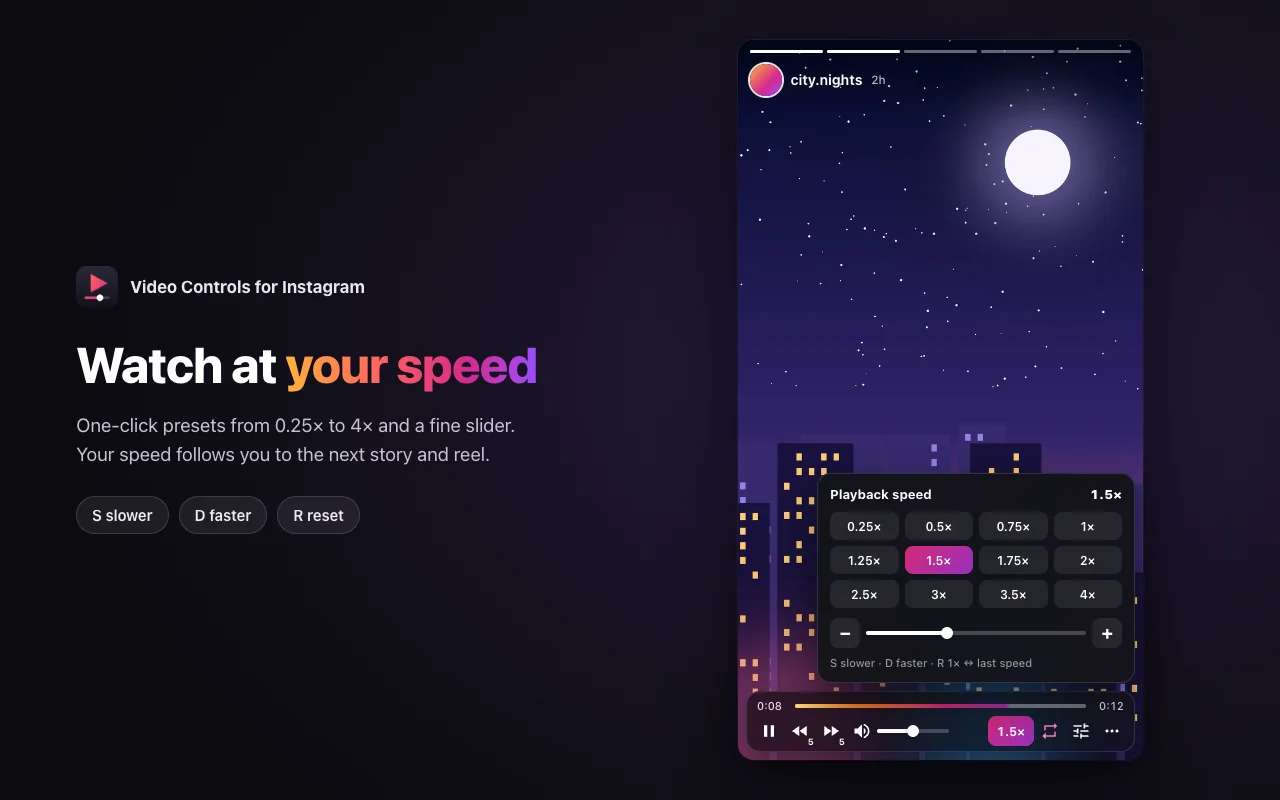
- Playback speed from 0.1× to 4×. One-click presets from 0.25× to 4× plus a fine slider. The speed you choose follows you to the next story and reel.
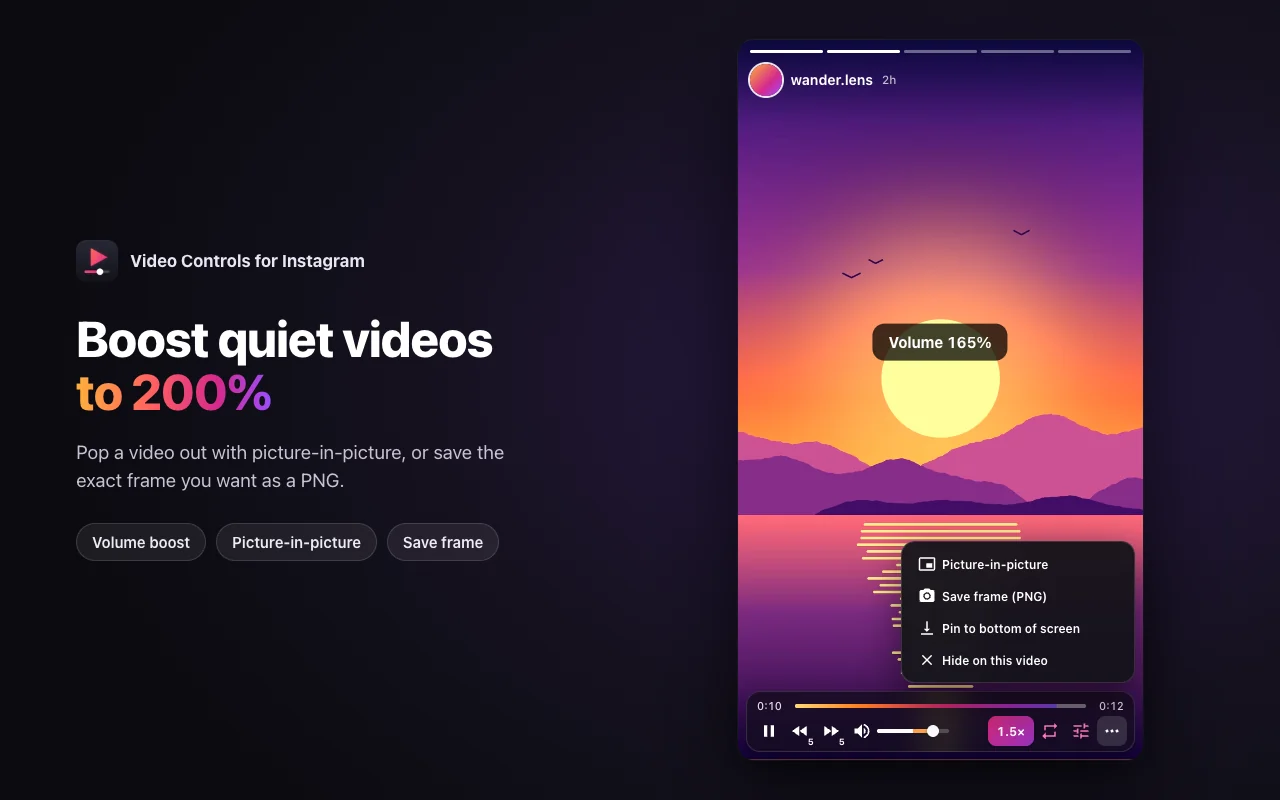
- Volume up to 200%. The first half of the slider is normal volume. The second half boosts videos that were recorded too quietly.
- Loop. A looping story stops jumping to the next one, which is the easiest way to read a text-heavy story at your own pace.
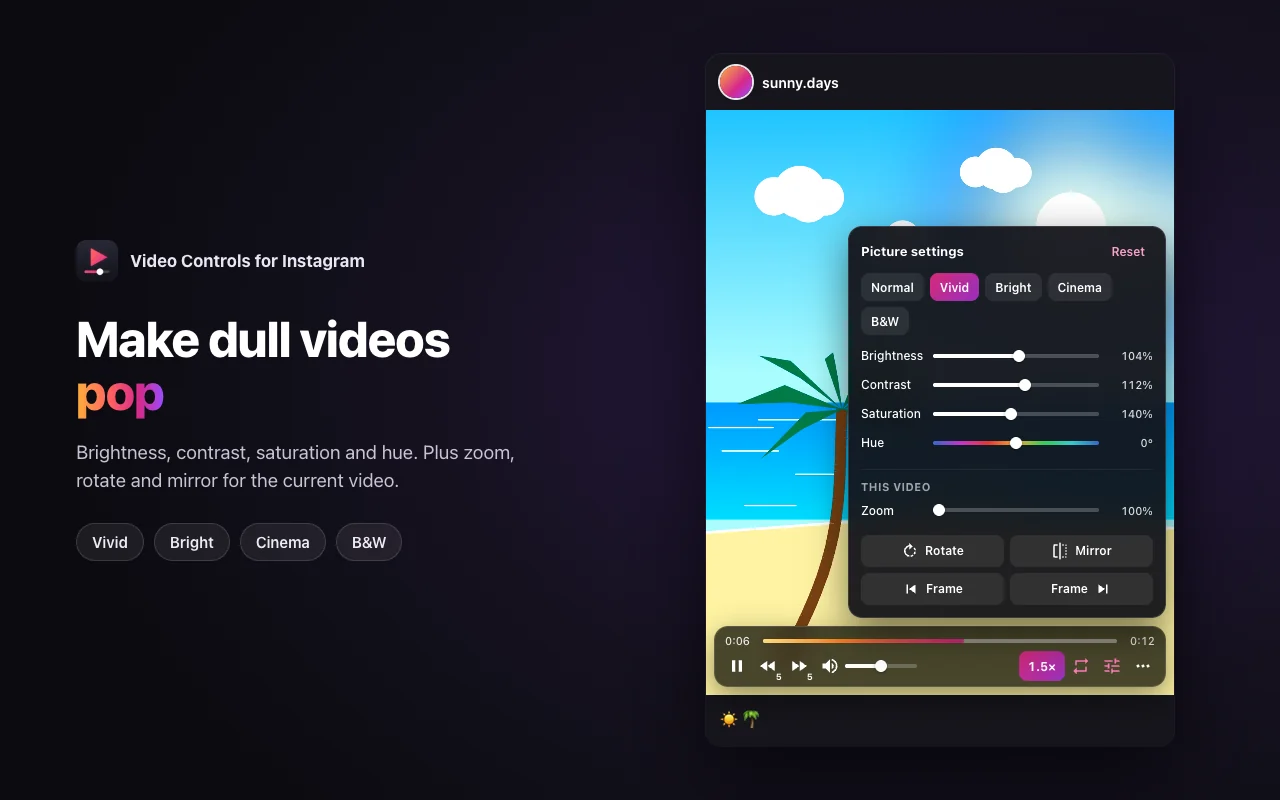
- Picture settings. Brightness, contrast, saturation and hue, with Vivid, Bright, Cinema and B&W presets. Zoom, rotate and mirror apply to the current video only.
- Frame by frame. Step through a video one frame at a time, handy for a caption that flashes by.
- Picture-in-picture and Save frame. Pop the video into a floating window, or save the exact frame on screen as a PNG.
How it works in stories
Stories are where Instagram's desktop player feels most limited, so they got the most attention.
The bottom of a story is normally taken up by the reply bar: the message box, the like button and the share button. The toolbar hides that row and takes its place, so it never covers the part of the video you are actually watching. If you reply to stories a lot, switch this off in the settings popup and the toolbar sits just above the reply bar instead.
Pausing from the toolbar keeps the story paused. You do not have to hold anything down. Together with loop and the seek bar, that means you can stay on a story for as long as you need.
How to use it
1. Install it. Add Video Controls for Instagram from the Chrome Web Store. The listing is on its way, and the product page will link to it as soon as it is live.
2. Open Instagram. Go to instagram.com and play any story, reel or post video.
3. Move the mouse over the video. The toolbar appears at the bottom.
4. Adjust the settings if you like. Click the extension icon in Chrome to choose where the toolbar sits, how far the skip buttons jump, and whether speed and picture settings are remembered between visits.
It works in Chrome and in Chromium browsers that install from the Chrome Web Store, such as Edge, Brave, Opera and Vivaldi. The interface follows your browser language and is available in English, Turkish, Spanish, Portuguese, German, French, Italian, Russian, Arabic, Hindi, Indonesian, Japanese and Korean.
Keyboard shortcuts
Everything on the toolbar has a key, so you can keep your hands off the mouse.
| Key | What it does |
|---|---|
K |
Play or pause |
Z / X |
Skip back or forward |
S / D |
Slower or faster |
R |
Switch between 1× and your last speed |
M |
Mute or unmute |
Shift + ↑ / ↓ |
Volume up or down by 5% |
L |
Loop |
, and . |
Previous or next frame |
H |
Hide or show the toolbar |
The shortcuts switch themselves off while you type a comment or a direct message, so pressing S in a chat still types an S.
A few things that were harder than they look
Adding buttons to a video sounds like an afternoon of work. Instagram's player made it a little more interesting.
Instagram's player expects to be in charge. It manages playback on its own, and a pause that the page undoes a second later would be worse than having no pause button at all. So the toolbar remembers that you paused a video and holds it there. It only lets the video start again when you press play yourself, either on the toolbar or on Instagram's own controls.
A click on the toolbar must not count as a tap on the story. On desktop, clicking the left or right half of a story moves to the previous or next one. If our buttons lived inside Instagram's page, every click on them would also skip the story. The toolbar is drawn in its own isolated layer on top of the page, so Instagram never sees those clicks, and it never inherits Instagram's styles either.
Volume above 100% is a one-way door. A video's own volume stops at 100%. Going past that means routing the sound through the browser's audio engine, and once a video is connected there it cannot be disconnected. If the audio engine is not allowed to run yet, the video simply goes silent. So the boost only switches on after you have interacted with the page, only for videos the browser lets us process, and when a particular video cannot be boosted the toolbar says so instead of muting it.
Speed has to stick. Each new reel or story starts at normal speed, and the player can reset the rate while it loads the next video. The extension applies your speed again to every new video it sees, so 1.5× stays 1.5× for the whole session.
Privacy
The extension asks for one permission, storage, which it uses to remember your settings. It runs only on instagram.com. It makes no network requests of its own, loads no remote code and collects nothing about you. Your settings stay in Chrome's local storage on your device and are removed when you uninstall it. The full details are in the privacy policy.
Why VidPickr built it
We spend most of our time on video in the browser, and this was a gap we kept running into ourselves. It is a small, focused tool, and it is free.
It is also worth saying what it does not do. Video Controls for Instagram does not download videos. It only changes how they play in your browser, which is also why it can live on the Chrome Web Store. If you are after YouTube downloads, that is what our other browser extension is for. Both are on the extensions page.
Frequently asked questions
Can I change the playback speed of Instagram reels on a computer?
Not with Instagram's own player. With Video Controls for Instagram you can play any reel, story or post video at anything from 0.1× to 4×, and the speed carries over to the next video.
How do I rewind an Instagram story?
Instagram lets you go back to the previous story, but not move around inside the one you are watching. The extension adds a seek bar and skip buttons, so you can drag back a few seconds or press Z to jump back 5 seconds.
How do I pause an Instagram story without holding the mouse?
Click pause on the toolbar or press K. The story stays paused until you play it again.
How can I make a quiet Instagram video louder?
Drag the volume slider past the middle. Everything above 100% is a boost, up to 200%.
Does it work in the Instagram mobile app?
No. It is a Chrome extension for instagram.com on a computer. Chrome on phones does not run extensions.
Is Video Controls for Instagram free?
Yes, completely free, and no account is needed.
Is it made by Instagram?
No. It is made by VidPickr and is not affiliated with, endorsed or sponsored by Instagram or Meta. Instagram is a trademark of Meta Platforms, Inc.